
Your Loper web games are a modern marketing resource for engaging students throughout the enrollment funnel. Use this guide to embed a game in a landing page, CMS, or CRM portal. Replace every placeholder with the production URL supplied in your institution’s Loper one-sheet.
Quick start
<iframe
  src="https://wq.getloper.com/{SCHOOL_ID}/{GAME_TYPE}/{SEQUENCE}?embed=true&utm_source=your-page&utm_medium=embed"
  title="Play our campus game"
  width="100%"
  height="700"
  loading="lazy"
  allow="clipboard-write; fullscreen"
  referrerpolicy="strict-origin-when-cross-origin"
  style="border: none; border-radius: 12px; max-width: 480px;"
></iframe>
Use a unique, descriptive title for accessibility. Keep embed=true; use distinct utm_source and utm_medium values for each placement.
URL structure and query parameters
Your one-sheet identifies the school ID, game type, and sequence for each game.
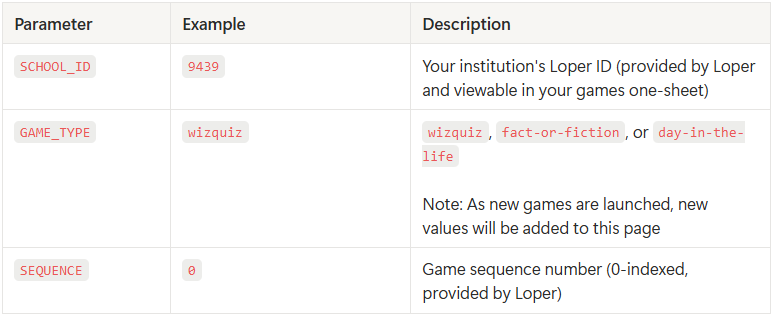
Loper may add game-type values as new formats launch. Do not guess an identifier; use the exact production URL supplied by Loper.
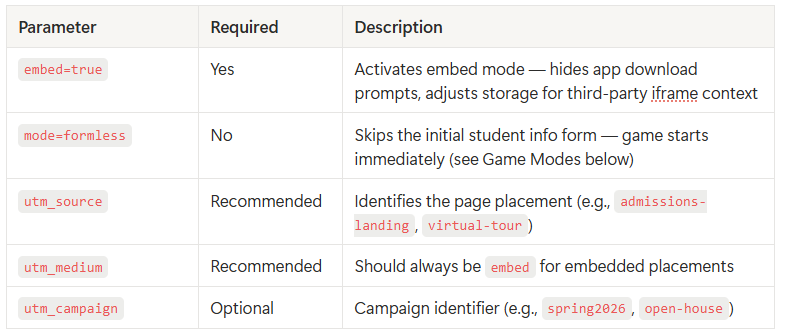
Apart from the required embed parameter, campaign parameters can be customized for the placement.
Game modes
Standard mode
Standard mode presents the game’s contact and consent flow so an identified student’s result can be delivered to the configured CRM workflow.
https://wq.getloper.com/{SCHOOL_ID}/{GAME_TYPE}/{SEQUENCE}?embed=trueFormless mode
Formless mode bypasses identifying-information collection. Use it when the interaction matters more than lead capture, such as an in-person event or high-school visit.
https://wq.getloper.com/{SCHOOL_ID}/{GAME_TYPE}/{SEQUENCE}?embed=true&mode=formlessReady-to-use patterns
Centered responsive embed
<div style="max-width: 480px; margin: 2rem auto; padding: 0 1rem;">
  <iframe
    src="https://wq.getloper.com/{SCHOOL_ID}/{GAME_TYPE}/{SEQUENCE}?embed=true&utm_source=campus-life&utm_medium=embed"
    title="Play our campus game"
    width="100%"
    height="700"
    loading="lazy"
    allow="clipboard-write; fullscreen"
    style="border: none; border-radius: 12px;"
  ></iframe>
</div>
Full-page landing page
<div style="display:flex;align-items:center;justify-content:center;min-height:100vh;padding:1rem;">
  <iframe
    src="https://wq.getloper.com/{SCHOOL_ID}/{GAME_TYPE}/{SEQUENCE}?embed=true&mode=formless&utm_source=landing-page&utm_medium=embed"
    title="Play our campus game"
    width="100%"
    height="700"
    allow="clipboard-write; fullscreen"
    style="border:none;border-radius:16px;max-width:480px;"
  ></iframe>
</div>
Mobile-optimized container
<style>
  .loper-embed { max-width: 480px; margin: 0 auto; padding: 0 1rem; }
  .loper-embed iframe { width: 100%; height: 700px; border: 0; border-radius: 12px; }
  @media (max-width: 480px) {
    .loper-embed { padding: 0; }
    .loper-embed iframe { height: 100vh; height: 100dvh; border-radius: 0; }
  }
</style>
<div class="loper-embed">
  <iframe
    src="https://wq.getloper.com/{SCHOOL_ID}/{GAME_TYPE}/{SEQUENCE}?embed=true&utm_source=mobile-page&utm_medium=embed"
    title="Play our campus game"
    loading="lazy"
    allow="clipboard-write; fullscreen"
  ></iframe>
</div>
Two-column landing page
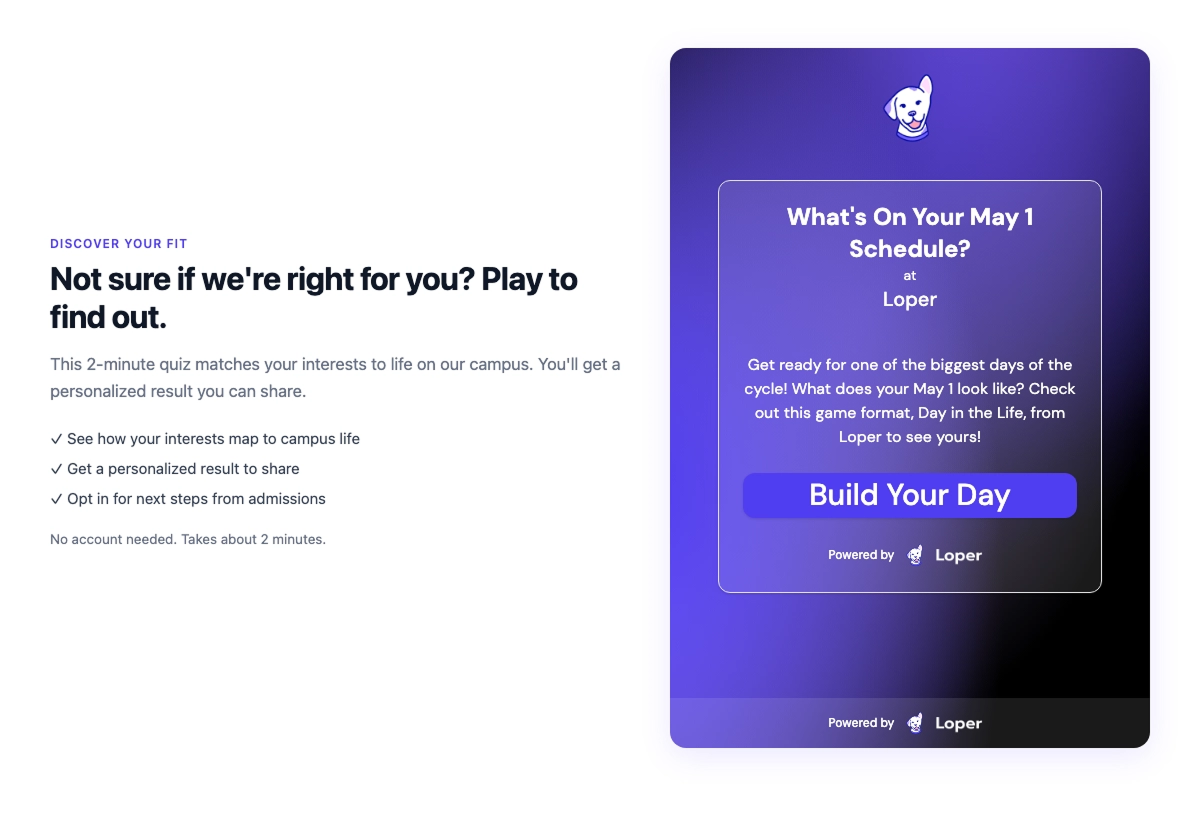
Place your institution’s supporting copy in the first column and the game in the second. Stack the columns below 900px.
<div class="loper-game-layout">
  <div>
    <h2>Introduce the game in your institution’s voice</h2>
    <p>Tell students what they will learn and how long the activity takes.</p>
  </div>
  <iframe
    src="https://wq.getloper.com/{SCHOOL_ID}/{GAME_TYPE}/{SEQUENCE}?embed=true&utm_source=two-column&utm_medium=embed"
    title="Play our campus game"
    width="100%"
    height="700"
    loading="lazy"
    allow="clipboard-write; fullscreen"
  ></iframe>
</div>
<style>
  .loper-game-layout { max-width:1100px;margin:auto;display:grid;grid-template-columns:1fr 480px;gap:3rem;align-items:center; }
  .loper-game-layout iframe { border:0;border-radius:16px; }
  @media (max-width:900px) { .loper-game-layout { grid-template-columns:1fr; } }
</style>
Lazy-load lower-page placements
Native iframe lazy loading is the simplest option: add loading="lazy" and reserve the final height so the page does not shift when the game loads. If your CMS removes that attribute, use its own lazy-load feature or an IntersectionObserver approved by your web team.
Platform setup guides
Slate portal pages
The Static Content widget in Slate’s Dynamic Layout Editor is the recommended embed surface.
- Go to Database → Portals, choose the portal, and open or create a view.
- In the Layout Editor, create a row and add Static Content from the Palette.
- Give the widget a clear name, choose Source (
< >) in the editor, and paste the iframe markup. - Save, place the widget, and test the student-facing route.
Paste the code in Source mode. The standard WYSIWYG view displays raw iframe code as text.
Slate communications do not reliably render iframes. Link an image or CTA to a landing page containing the game instead.
WordPress
Use a Custom HTML block, not the Embed block. Preview before publishing. Security plugins or multisite permissions may strip iframe markup; an authorized administrator must approve the required exception rather than disabling protection permanently.
Drupal
Use CKEditor’s source-editing control with the Full HTML text format, or place the markup in a custom block. If iframe tags disappear after saving, ask an administrator to allow iframe plus the required src, title, width, height, loading, style, and allow attributes.
Omni CMS
Open the editable region in source-code mode, paste the snippet, preview, and submit through the institution’s normal approval workflow. For repeated placements, ask an administrator to create a governed Snippet or Asset.
Squarespace
Use a Code block, available on supported Squarespace plans, then preview the published page.
IT and security requirements
If the institution sends a Content-Security-Policy header, allow the production game origin:
frame-src https://wq.getloper.com;Keep the rest of the institution’s policy intact. The iframe’s storage remains scoped to the Loper game origin; do not add broad wildcard origins.
Troubleshooting
The iframe is blank or refused to connect
- Open the exact
srcURL in a browser to confirm the game exists. - Confirm CSP permits
frame-src https://wq.getloper.com. - Check whether a parent policy sends
X-Frame-Options: DENY. - Test without extensions that may block third-party frames.
The game is clipped
- Keep
width="100%"and reserve at least 700px of height. - Check parent containers for a smaller fixed height or
overflow: hidden. - At mobile widths, remove unnecessary horizontal padding and width caps.
Reporting does not identify the placement
- Confirm
embed=trueis present. - Give each placement meaningful
utm_sourceandutm_medium=embedvalues. - Allow 24–48 hours for configured reporting workflows.
Frequently asked questions
Can we embed a game on multiple pages?
Yes. Use the supplied game URL and unique campaign parameters for every placement.
Do students need the Loper app?
No. Web games do not require an app download or Loper account.
Will an embed slow down the page?
The game runs in an isolated iframe, but it is still a network resource. Use loading="lazy" below the fold, reserve its dimensions, and measure the final page in your own performance tooling.
Can we remove it later?
Yes. Remove the embed markup from the CMS; there is nothing to uninstall.
How quickly do identified leads appear?
Configured standard-mode leads generally appear in the institution’s lead pipeline within 24 hours. Contact Loper if a validated submission is still missing after that window.
Support
For production URLs, one-sheets, or implementation help, email [email protected].